
Camera and Microphone Are Not Working
To troubleshoot audio and video issues, please follow these steps.
- Toggle Audio/Video
- Try toggling the microphone and camera off and then back on
- There are different "states" to the camera and microphone, to help tutors decode what might be going on if they are experiencing issues.
- Video box is light grey - the person is not present, permissions are not enabled in the browser, or no camera was found by the system
- Video box is black - video is turned off
- Refresh the page
- If the camera and microphone are still not working correctly, reload the webpage
- Make sure you can see your video feed and the green audio wave under the video feed when speaking
- Turn off all other software that might be using audio and video
- If you are using another program that is using audio and video (such as MS Teams, Google Meet, or Zoom), there maybe contention between your camera and microphone.
- Turn off the audio & video in that other platform (or exit the other program entirely), then refresh the page in Saga connect.Advanced note: this is especially true for Microsoft Windows computers. Mac and Chromebooks are more tolerant to camera and microphone contention.
- Check that permissions have been enabled for the Saga Connect website to access your camera and microphone.
- Steps to enable permissions vary by operating system and internet browser. Please refer to this page for specific details.
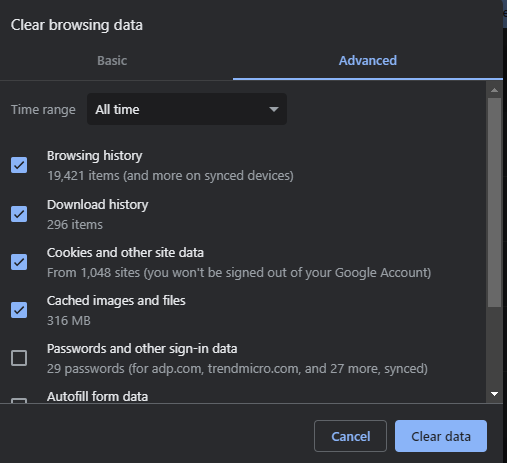
- Clear the cookies and history for all time
- From your Chrome browser, press CTRL + H on your keyboard to open History.
- Go to Clear browsing data from the left side
- Go to the Advanced tab and select All Time from the Time Range dropdown.
- Click Clear data
-
-
Check the camera, microphone, and computer to see if any external settings (switches, dials, etc) have been set.
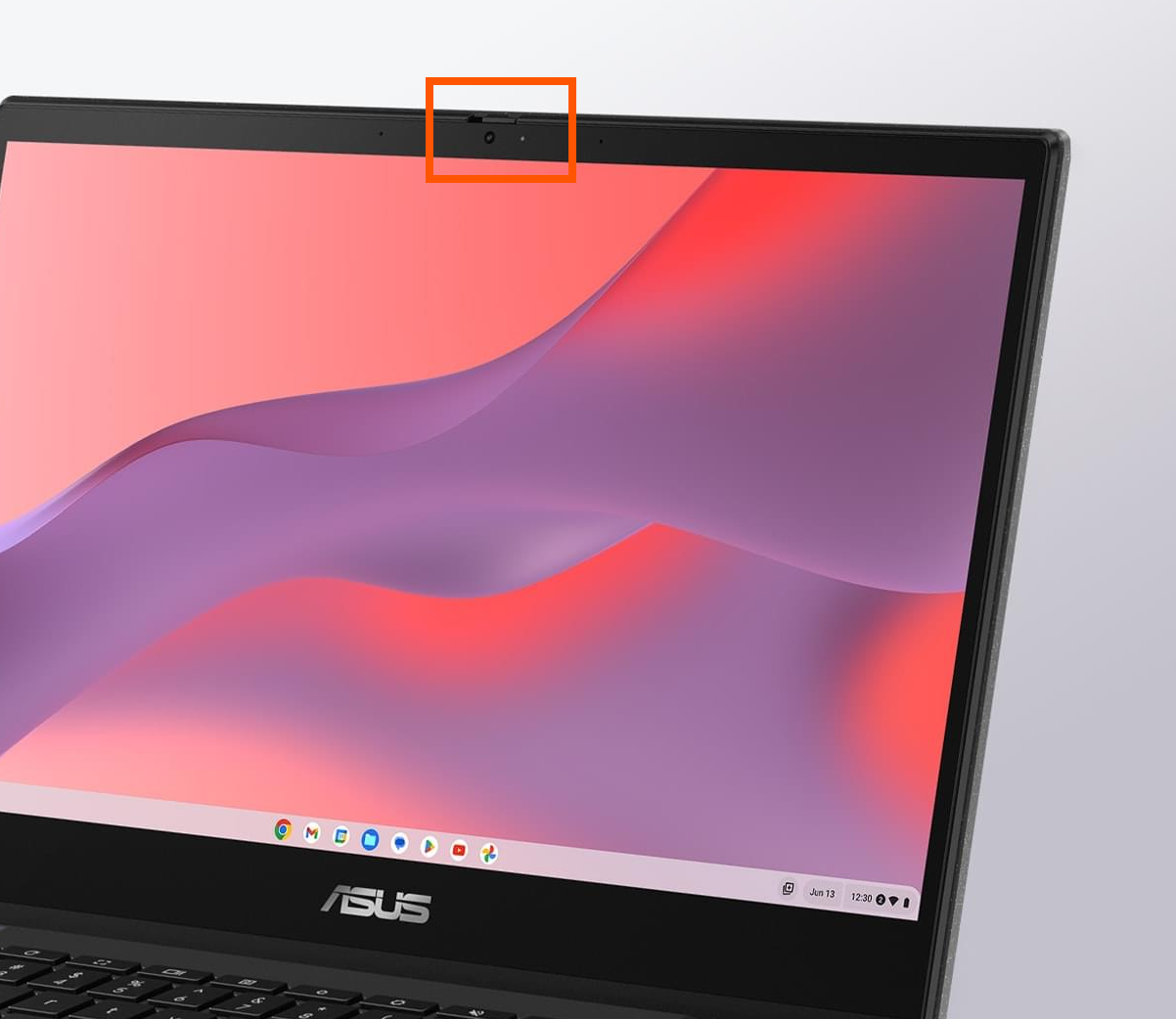
ASUS CM14 Flip

For more detailed troubleshooting tips, please follow these steps. If after following these steps, issues persist, please submit a ticket and we will be happy to investigate the issue with you.