
Create Tutors
Creating Tutors
The creation and management of tutors are handled exclusively through the admin dashboard. To create tutors, please follow the following steps below:
Use the Admin Dashboard to create and manage your roster of tutors, either through the Roster Tab or the Program tab.
Roster Tab - Adding tutor to any Program
- Log into Saga Connect
- Navigate to the Roster tab
- Select the Tutor sub-tab
- Click the Add Tutor button

- Fill in the various fields and click Save
Program Tab
- Log into Saga Connect
- Navigate to the Program tab
- Create a Program or select a Program already created

- The Program selected will also need a Bell Schedule and a Tutoring Schedule
-


- If the Program selected already has a Bell Schedule and Tutoring Schedule you will see a section at the bottom to create tutors

- Hovering your mouse over the Add Tutor field will supply two options. Add New Tutor and Add Existing Tutor
- Adding a New Tutor will supply same fields when creating a tutor through the Roster tab
- Adding an existing Tutor will provide a list of Tutors in the organization that can be selected. Click the Tutors you wish to add and click save at the bottom.
- If no Tutors show up then there are no available tutors.

The Upload Roster feature is the easiest way to upload a large number of tutors at once. Follow these steps:
- Log into Saga Connect
- Navigate to the Roster tab
- Select the Tutor sub-tab
- Click the Upload Roster button

- If you already have a CSV file made, click Import a Roster File, otherwise you can find an example in the lower right
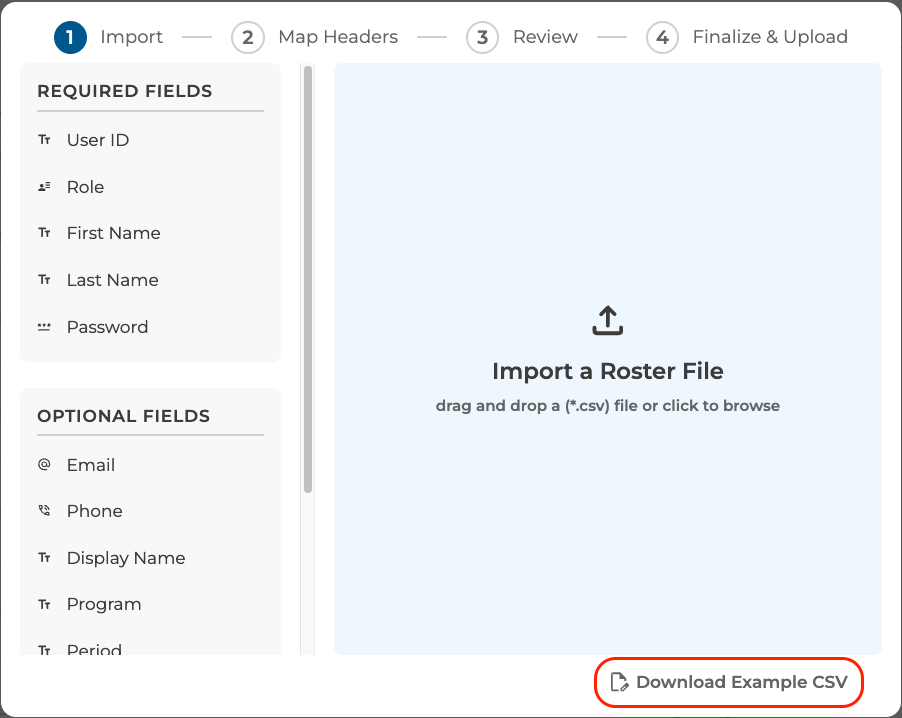
- Select the CSV file to use and drag it to the blue import area or click to open up your file browser.
- Please note that the CSV uploader will be looking for the fields shown in the left of the pop-up (required and optional).
- Ensure all imported CSV headers are mapped to the correct Saga Roster Headers and click Next.
-
- Correct any errors before clicking Next.
- Error can be corrected directly in the pop-up window.


- Click Next and then click Upload Roster button.

- Click Reload Page to view your roster changes.
