
How to set what page a student looks at
By default, students are free to navigate independently from the tutor, and select what page they are viewing. However, tutors can lock the student's page, so that the tutor and all students are always on the same page. To lock or unlock student pages, use the lock icon on the left hand side of the toolbar, as shown.
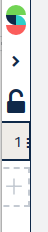
A tutor can use the lock button at the top of the page navigation bar to lock their students’ view to their own. When the lock is unlocked, the students are free to move around to whichever page they desire. The blue page indicates it is the one being displayed. Clicking on the three horizontal dots on the page selector will allow you to drag the pages around to reorder if needed.