
How to Create, Edit, and Add to a Program
Only admins for an organization can create a Program. A program is where the tutors and students participate in sessions and activities. An admin may have multiple programs in the organization with which they work. This may be because they have multiple schools in their district or need separation between specific Programs. Below will cover the following:
- How to add a program
- How to edit a program
- How to add a bell schedule
- How to incorporate tutor schedules
- How to edit tutor assignments
- How to edit tutor schedules
- How to add tutors to the program
How to add a program
To add a program, you will need to sign into the dashboard. After signing in, follow these steps:
- Navigate to the Programs Tab
- If your organization does not yet have a program, you will be prompted to create one after signing in
- Fill in the necessary fields for the program, such as name and location.
-
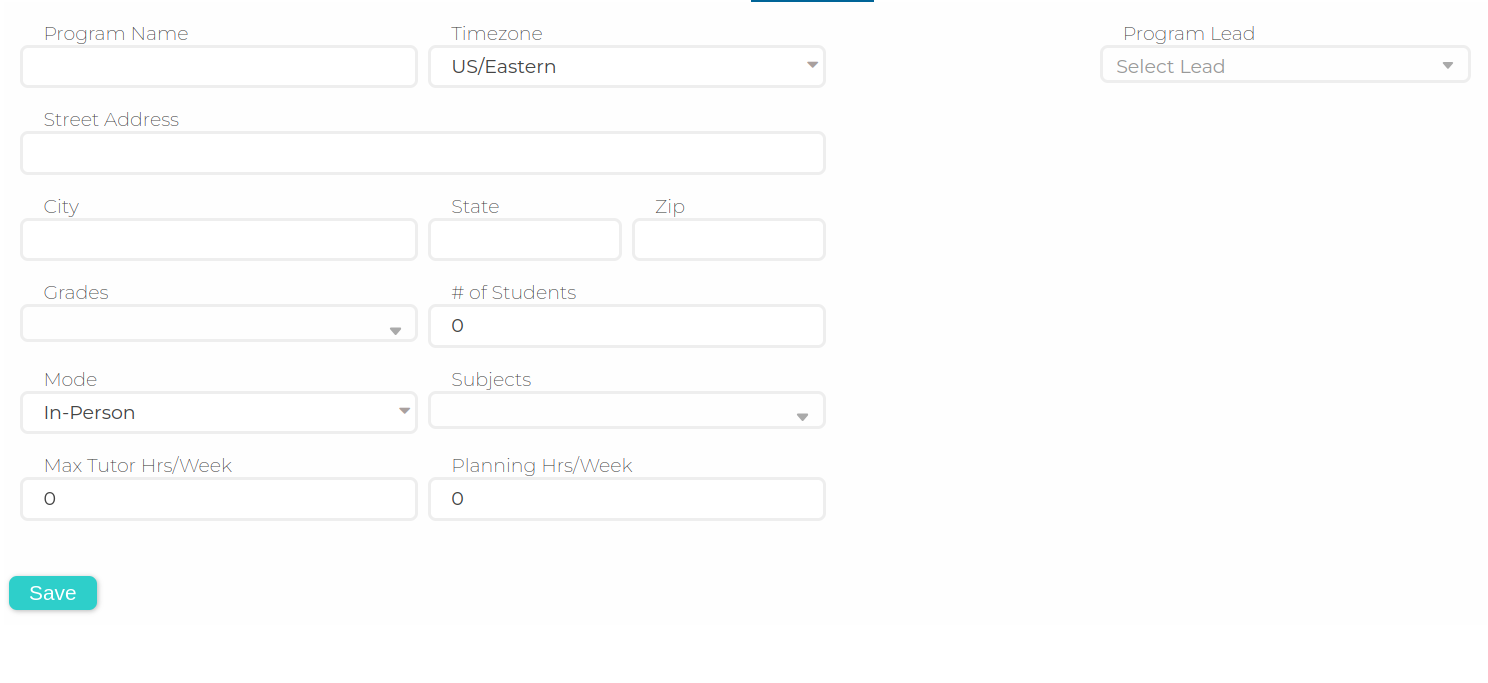
Fields when creating a Program
-
How to edit a program
- After creating a program, you can edit it by clicking the "edit program" button found on the program's details
-
- Clicking the "edit program" button will bring up the fields from before and allow you to change the values
-


How to add a bell schedule
- After creating a Program you will see the ability to add a bell scheulde to the program
-
- To add a bell scheudle you will need to create periods
-
- Adding periods will allow you to specify details like block scheduling and times
-


How to edit a bell schedule
- After a bell schedule is made you can edit it by clicking the "manage bell schedule" button
-
- Make changes and then save.
- Tutoring periods will update with changes made to existing periods. If additional periods were added, those can now be added to the tutoring schedule as well.

How to incorporate tutor schedules
- To incorporate Tutor schedules, you will need to add tutors to the bell schedule periods. Add the room, period, and ratio before saving.
-

How to edit Tutor Assignments
- After creating the tutor schedule you can assign tutors to periods and rooms.
-
- Click edit and then select the tutors for the periods per day
-
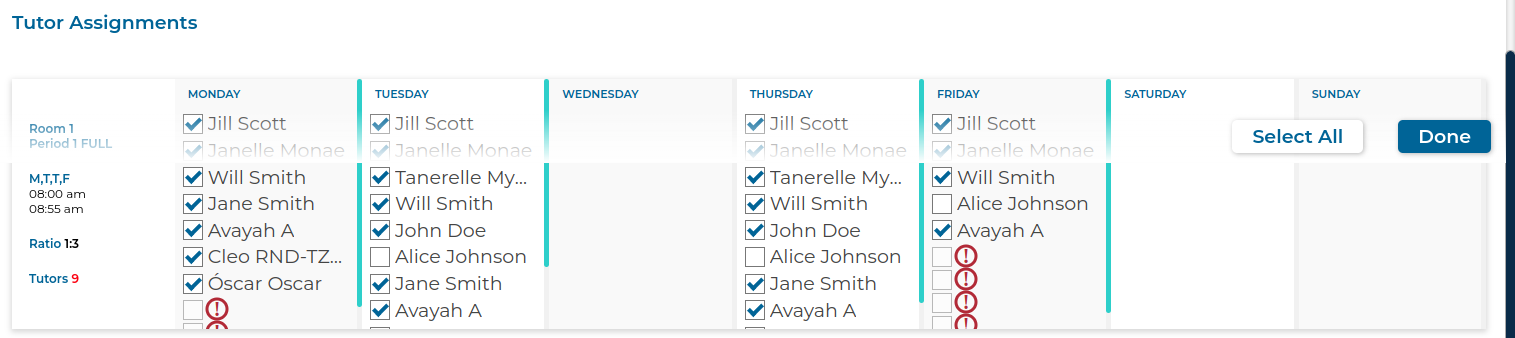
- Click Done to lock the selections made, then click Done again to save the Tutor Assignments.

How to add tutors to the program
- You can add tutors to a program by either creating a new one or adding an existing tutor
-
- Creating a new tutor here is the same as doing so from the Roster tab. See above for further information.
- Selecting an existing tutor will bring up a list of available tutors for you to select and save.
-


Here is a video showing the information above: