
Accessing Saga Coach as an Administrator
How to View Coach Module Progress Reports
The admin dashboard provides progress reports for your tutors' Coach modules, allowing you to track their completion status. Follow these simple steps to access the reports:
- Accessing the Dashboard: Log in to your admin account and navigate to the main dashboard.
- Navigating to Training: Click on the Reports tab and then select Coach from the main dashboard.
- Select the Coach Track you wish to view progress for
- Understanding Progression Colors: In the progress reports, different colors represent various stages of completion:
- Gray: Indicates that a tutor still needs to start the training module.
- Red: Represents completion progress between 0% and 49%.
- Yellow: Shows completion progress between 50% and 99%.
- Green: Indicates that a tutor has completed 100% of the training module.
-
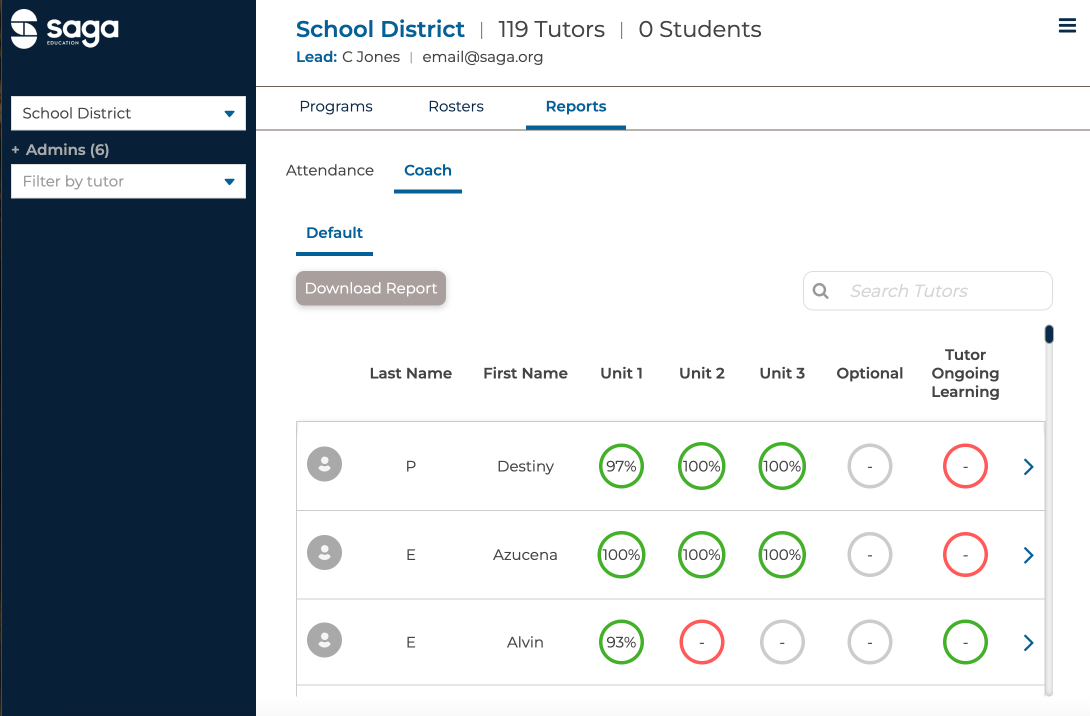
Saga Coach Reports
-
- Assessment Score: Some pathways have assessment modules. Their scores are shown in the circle as a number.
-

Showing assessment scores
-
- Download Report: You can download the results for all the tutors by clicking the gray "Download Report" button in the upper right. This can be seen in the image for step 3.
By following these steps, you can easily track your tutors' progress.
Administrative Walkthrough of Saga Coach
For additional information, please see this detailed walkthrough of Saga Coach.
Tutor Access to Saga Coach
Tutors can access Saga Coach through their training tab. To learn more about that, see this help article.